Step 1: Connect the telephone to the Line In jack
A telephone recording adapter connects the phone to your computer.
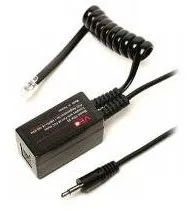
After connecting the phone to the adapter, plug the adapter’s 3.5 mm stereo connector into the Line In jack (usually blue) on your sound card.

Step 2: Select the audio source
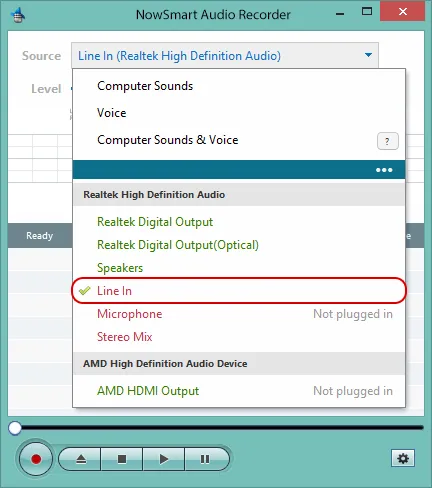
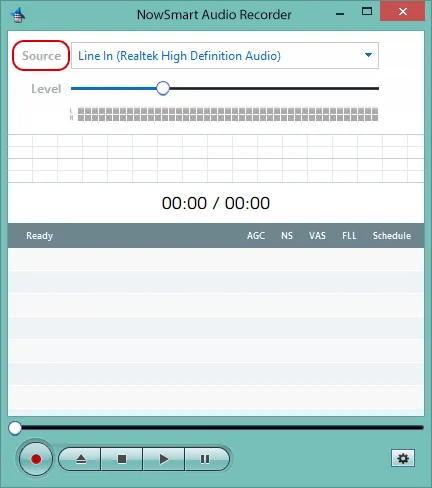
If the adapter is connected to the main sound card, such as Realtek High Definition Audio, choose Line In in that section.
Step 3: Name your audio file (optional)
Click Add/New to select an audio file or to name a new one, such as test.mp3, test.wav, or test.flac.

NowSmart Audio Recorder saves the recording directly to this file. You can play the recording in NowSmart Audio Recorder or in any media player.
Step 4: Start recording
Press Record to start.

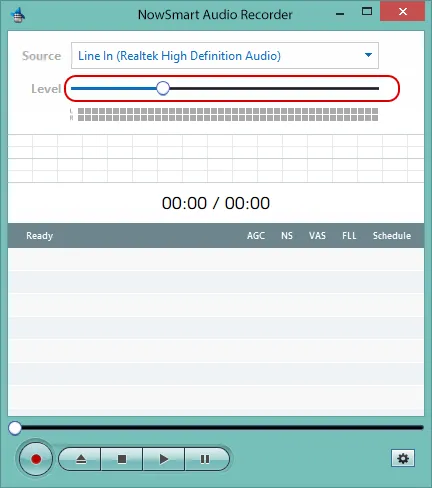
Adjust the recording level as needed.
Step 5: Improve the recording (optional)
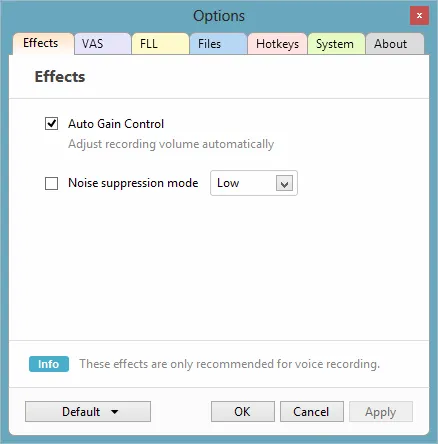
Open Options.
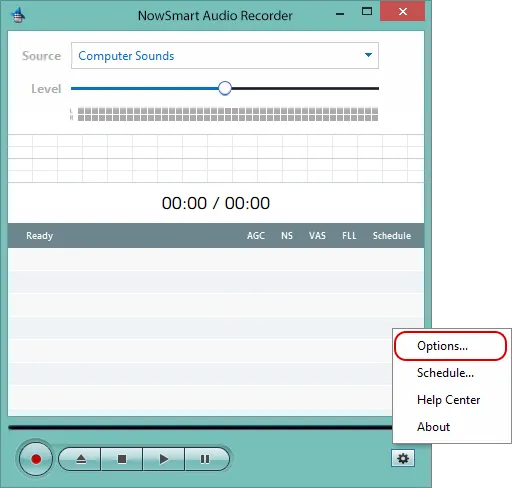
Enable Auto Gain Control and Noise Suppression as needed.
The Voice Activation System (VAS) filters out long pauses automatically. Open the VAS tab and adjust the settings.
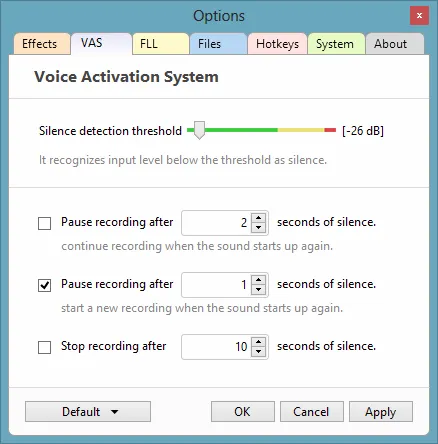
Make a few test recordings to find the right Silence Detection Threshold. NowSmart Audio Recorder treats any input level below this threshold as silence.
Step 6: Hear the call while recording (optional)
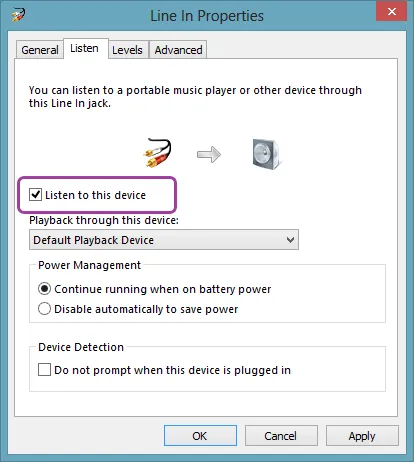
To hear the audio while it records, click Source to open the Windows Sound control panel.
Select Line In, then Properties.
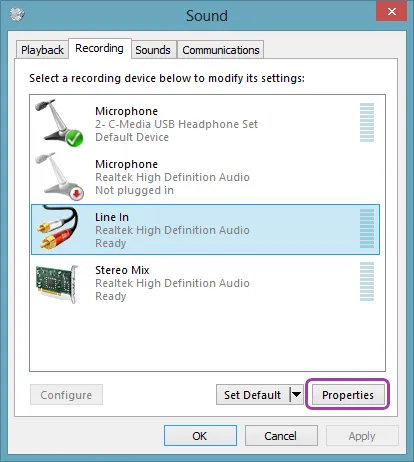
On the Listen tab, enable Listen to this device.
Record responsibly
Ask for consent before you record calls; laws differ by location, and some require the consent of everyone in the conversation.
Related articles
Still need help? Browse all NowSmart Audio Recorder articles or contact support.
Start with the free version
The free version of NowSmart Audio Recorder records up to 5 minutes per file. NowSmart Audio Recorder Pro removes the limit and adds Trim for a one-time USD 9.99.