Record computer sounds and voice at the same time
On Windows 10, Windows 11, and later, NowSmart Audio Recorder records from the speakers and the microphone at the same time. This captures conversations from any voice chat app.
Usually you only need to select Computer Sounds & Voice and start recording.
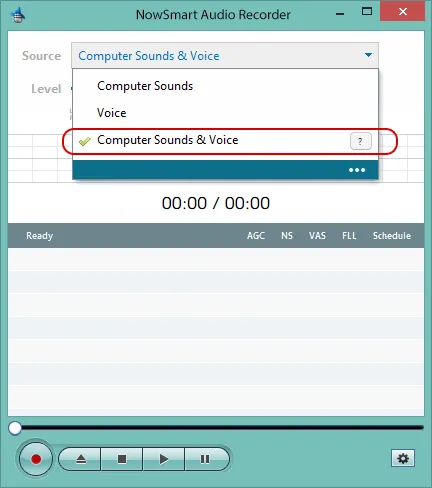
Ask for consent before you record calls or meetings; laws differ by location, and some require the consent of everyone in the conversation.
FAQ
The computer sound is fine, but my voice is too quiet. How do I fix it?
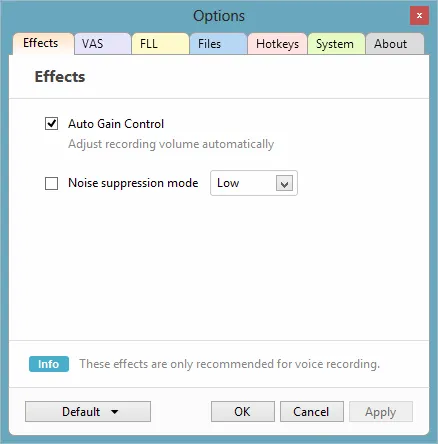
Move the microphone closer to your mouth. Auto Gain Control also helps, because it adjusts the recording level automatically. Click Options to change this setting.
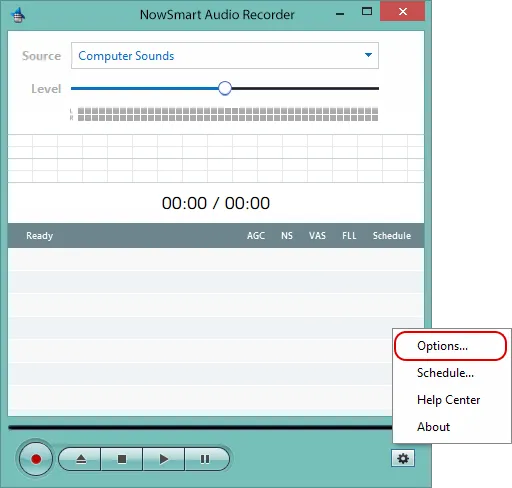
Enable Auto Gain Control. You can also enable Noise Suppression if needed.
The recording is missing the computer sound or my voice, or I get “System default device not available”. What should I do?
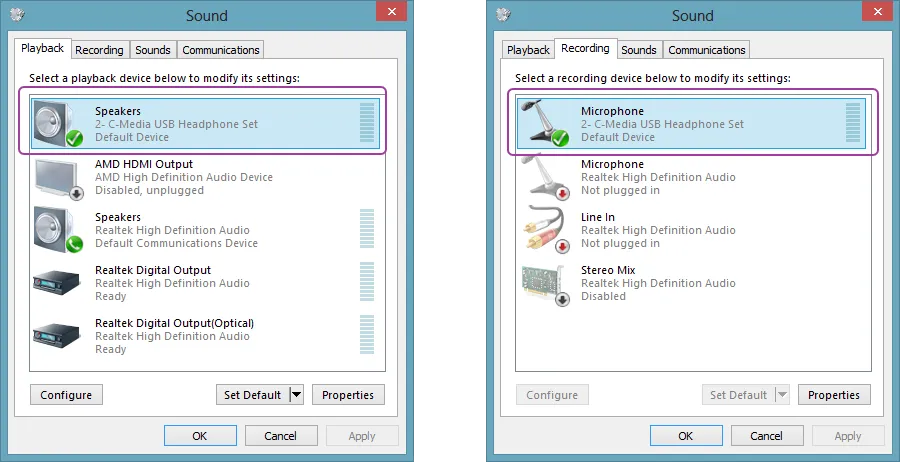
Computer Sounds & Voice records from the default playback device and the default recording device in Windows, not from the default communication devices. Make sure the right devices are set as default in the Windows Sound control panel. Click Source to open it.
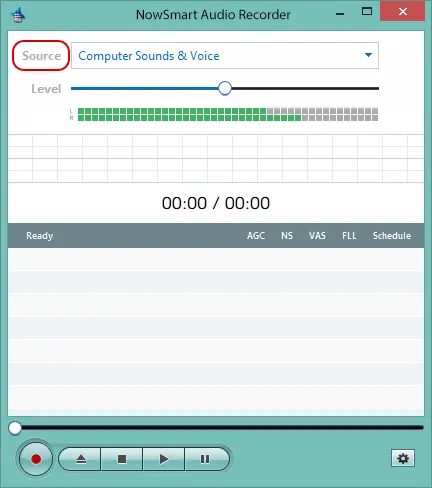
For example, to record a USB headset, set it as the default device for both playback and recording. Windows usually does this automatically, but sometimes you need to set it yourself.
Why can’t I hear my voice while recording?
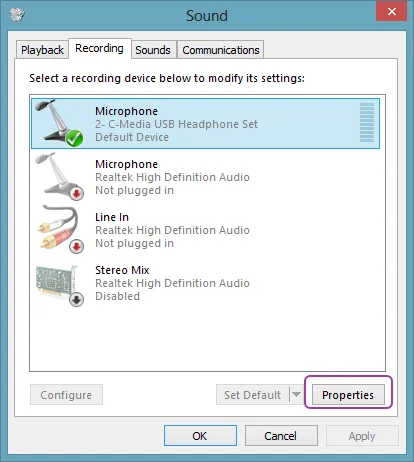
By default, Windows does not play your microphone through the speakers, so you do not hear yourself while recording. To change this, click Source to open the Windows Sound control panel.
Choose the default Microphone, then click Properties.
On the Listen tab, select Listen to this device.
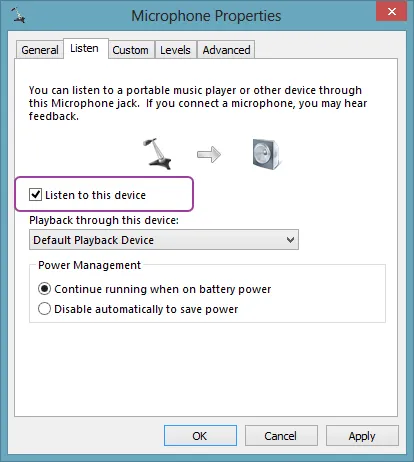
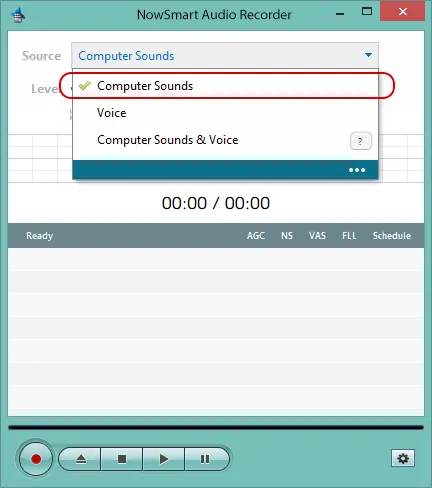
With this setting on, your voice plays through the speakers, so you can select Computer Sounds as the recording source and NowSmart Audio Recorder records both the computer sounds and your voice.
Related articles
Still need help? Browse all NowSmart Audio Recorder articles or contact support.
Start with the free version
The free version of NowSmart Audio Recorder records up to 5 minutes per file. NowSmart Audio Recorder Pro removes the limit and adds Trim for a one-time USD 9.99.