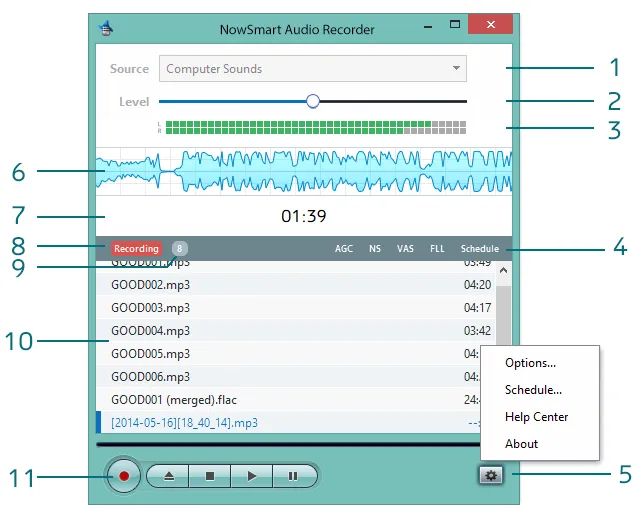
- Choose a source for recording.
- Adjust the recording level.
- Display the status of the selected device.
- Indicate whether these features are enabled: Auto Gain Control, Noise Suppression, VAS, FLL, and Schedule.
- Open the popup menu.
- Display a waveform during recording.
- Show the playback position and the total file length.
- Indicate the current status, such as Playing, Recording, or Paused.
- Display the number of files in the recording list.
- The recording list.
- Controls for Record, Add/Open, Stop, Play, and Pause.
The recording list
The recording list stays between sessions and keeps links to your recording files. NowSmart Audio Recorder does not manage these files: if you move or delete a file outside NowSmart Audio Recorder, the list does not update. Keep track of your files in the folder where you save them.
Recording sources
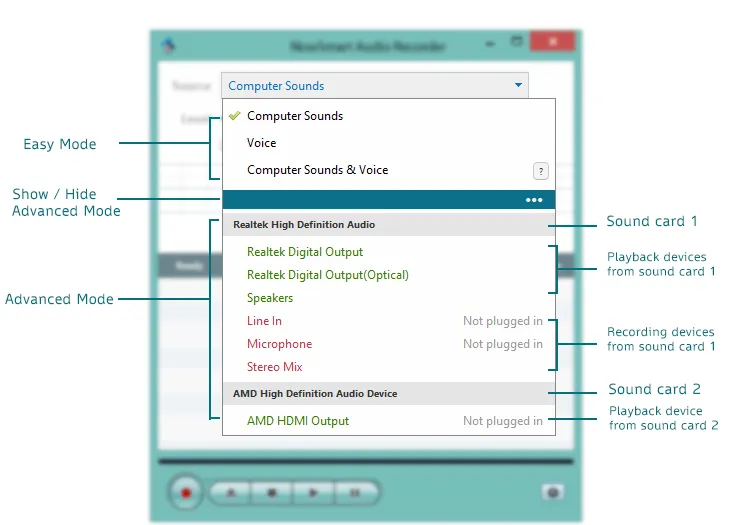
NowSmart Audio Recorder lists every audio device on your computer. The computer in the screenshot has two sound cards, each with several devices:
- Realtek High Definition Audio
- Playback: Realtek Digital Output, Realtek Digital Output (Optical), Speakers
- Recording: Microphone, Line In, Stereo Mix
- AMD High Definition Audio
- Playback: AMD HDMI Output
Choose the device you want to record from as the recording source.
Still need help? Browse all NowSmart Audio Recorder articles or contact support.
Start with the free version
The free version of NowSmart Audio Recorder records up to 5 minutes per file. NowSmart Audio Recorder Pro removes the limit and adds Trim for a one-time USD 9.99.